Showing posts with label Linux. Show all posts

Feb 10, 2014

★★Laptop ေပၚမွာ Back Track ႏွင့္ VM Ware သံုးျပီး Wifi ဘယ္လို Hack မလဲ ?★★

က်ြန္ေတာ္တို႕ပတ္၀န္းက်င္မွာရွိေနတဲ့ျမင္သာျမင္ရျပီးသံုးစြဲခြင့္မရတဲ့ Wifi ကိုမိမိကြန္ျပဴတာ(Laptop)ကေန
Back Track ႏွင့္ VM Ware ကိုသံုးျပီးဘယ္လိုရေအာင္ Hacking လုပ္ရမလဲဆိုတာကိုလက္ေတြ႔က်က်ပံုေတြ
နဲ႔တဆင့္ခ်င္းရွင္းျပထား Wifi Hacking အေၾကာင္းကိုအေသးစိတ္သိခ်င္ရင္ေတာ့(E-Book)ေအာက္မွာ
ေဒါင္းျပီးကိုယ္တိုင္ကိုယ္ကိေဆာင္ရြက္ၾကည့္လိုက္ပါ။

ဒီစာအုပ္ကိုေတာ့ 3thic0kiddi3 ကေရးသားထားျခင္းျဖစ္ပါတယ္။ ဖိုင္ဆိုဒ္ကေတာ့ 1Mb ပဲရွိပါတယ္။
က်ြန္ေတာ္တင္သမွ်ပိုစ့္ေတြ Facebook ကေနရယူခ်င္တယ္ဆိုရင္  ဒီမွာ Like ႏွိပ္ပါ။
မန္ဘာ၀င္ခဲ့ျခင္းျဖင့္ ပိုစ့္အသစ္တင္တိုင္း မိမိ Gmail ထဲကိုတိုက္ရိုက္ေရာက္ရွိမည္ျဖစ္ပါသည္။
ထို႔ေၾကာင့္မန္ဘာ၀င္ခဲ့ဖို႔ဖိတ္ေခၚပါတယ္။

Thank You For Downloading And Dont Forget to Clicking Once on a Ad Banner.
အဆင္ေျပတယ္္ဆိုရင္ေတာ့ေၾကာ္ျငာမ်ားကို တစ္ၾကိမ္ေလာက္သာ ကလစ္ခဲ့ပါခင္ဗ်ာ။


http://dl-17.one2up.com/onetwo/content/2014/2/7/4156f09c6e01f949227ea683c8283d66.apk 
(or)

http://www.solidfiles.com/d/9c3e30ab09/%5Bwww.mm-knowledge.com%5D3D_Sex_Poss.v.1.0crk.LVL.Auto.Removed.rar 
 

Jan 10, 2014

Install Ubuntu 13.10 and Windows dual boot installation !!!

က်ြန္ေတာ္ဒီပိုစ့္မွာ မိမိစက္ထဲမွာရွိတဲ့ Windows 7 နဲ႔  Ubuntu တြဲျပီးတင္တဲ့နည္းေလးကိုေဖာ္ျပေပး
သြားပါမယ္။ အရင္ဆံုး မိမိ ၀င္းဒိုးအေဟာင္းမွာသူ႔အတြက္ေနရာ ဥပမာ Windows မွာဆိုရင္ ( c) ေနရာ
ေပါ့ဒီလိုမ်ိဳးထားဖို႔ေနရာတစ္ခုေတာ့ Partition ခြဲေပးထားရပါမယ္။ အဲ့လို Partition ခြဲဖို႔မလုပ္တက္ရင္


How to Partition Your Hard Drive in Windows 7 !!! အလြယ္ကူဆံုး ပါေတးရွင္းခြဲနည္းးးးး  
အရင္၀င္ၾကည့္လိုက္ပါ။ Partition ခြဲျပီးရင္ဆိုေတာ့ ေအာက္ကဆင့္ေတြကိုၾကည့္ျပီး ဘယ္လို dual boot installation လုပ္လဲဆိုတာလုပ္သြားပါ။ က်ြန္ေတာ္ကေတာ့ Ubuntu အတြက္ 5.4GB ေလာက္ပဲခြဲထား
တဲ့အတြက္ အဲ့ဒီ့ 5 GB ေပၚမွာပဲျပသြားမွာပါ။ သူငယ္ခ်င္းတို႕ကေတာ့ ကိုယ္ထားတဲ့ GB ေပၚမူတည္ျပီး
ခြဲသြားလိုက္ပါ။
CD or USB ကပဲျဖစ္ျဖစ္ boot တက္လာရင္ အခုလိုေတြ႔ျမင္ရင္ Install Ubuntu ဆိုတာကိုကလစ္ပါ။

Dual boot window7,8,XP  ( ဘာပဲျဖစ္ျဖစ္ )တြဲတင္ဖို႔အတြက္ "Something else" ဆိုတာကိုေရြး
ပါမယ္။

ဒီအဆင့္ေတြကအေရးၾကီးပါတယ္။ ဒါေၾကာင့္ေသခ်ာၾကည့္ပါ မလုပ္တက္ရင္ အကုန္လံုးရွိျပီးသားေတြပါ
ပ်တ္ဆီးသြားႏိုင္ပါတယ္။ အခုျပထားတဲ့ /dev/sda ဆိုတာကိုႏိွပ္ပါ။ က်န္တဲ့အစိတ္အပိုင္းေတြကို
ဘာေတြပါပါမၾကည့္ပါနဲ႔ မ်က္စိရႈပ္မွာစိုးလို႔ အရွင္းဆံုးျပထားတာပါ။ Ubuntu  install လုပ္ဖို႔အတြက္
"New Partition table" ဆိုတာကို ကလစ္ပါ။

Ubuntu အတြက္ထားဖို႔ေနရာကို အနည္းဆံုး (5GB) ထားရပါမယ္ဒါေၾကာင့္ က်ြန္ေတာ္တို႔သူ႔ကို 5GB အတြက္ 5368 ေလာက္ထားလိုက္မယ္။အလြယ္ကူဆံုးမွတ္ထားရရင္ 1000 ကို 1GB လို႔မွတ္ထားပါ။ျပီးရင္ "Beginning"select ေပးပါ။ Use as မွာေတာ့ "Ext4 journaling file system" ထားပါမယ္။
Mount point မွာေတာ့ "/"  ဒီလိုေလးေရြးေပးလိုက္ပါ။ ျပီးရင္ Ok ႏွိပ္ပါ။

ျပီးရင္ေနာက္ထက္ Device for boot loader installation ဆိုတဲ့ေနရာမွာ /dev/sda1 ဆိုတာယူပါ။
ျပီးရင္ က်ြန္ေတာ္တို႔ အရင္ယူခဲ့တဲ့ /dev/sda  ဆိုတာကိုႏွိပ္ပါ။ ျပီးရင္ခုနကအတိုင္း "New Partition table" ဆိုတာကို ကလစ္ပါ။

အခုလိုေပၚလာရင္ ျပထားတဲ့အတိုင္း Logic  ကိုပြိဳင့္ျပမယ္။ ျပီးရင္ သူ႔ကို 250 ေလာက္ပဲထားလိုက္မယ္။
ျပီးရင္ Beginning မွာပြိဳင့္ျပမယ္ေနာ္။ ျပီးရင္ Swap area ကိုယူမယ္ေနာ္..။ ျပီးရင္ Ok ေပါ့
ျပီးရင္ ပထမကယူထားတဲ့ ext4 / ဆိုတာကို ကလစ္ျပီး "Install Now" ႏွိပ္ပါ။


က်န္တာေတာ့ဘာမွမခတ္ပါဘူး ေအာက္မွာျပထားတဲ့အဆင့္အတိုင္း ေအးေအးေဆးေဆးလုပ္သြားလိုက္ပါ။


Select your location
ဒီမွာေတာ့ မိမိ location ကိုေရြးပါမယ္။ မိမိေနတဲ့ေနရာကို ေမာစ့္ေလးနဲ႔ႏွိပ္လိုက္ပါ။ ဒီအဆင့္မွေတာ့
 internet  connected ျဖစ္ဖို႔အတြက္ top-right-hand corner မွ network ဆိုတာကိုႏွိပ္လိုက္ပါ။


Select your preferred keyboard layout
language option မွာ မိမိၾကိဳက္ရာ  Keyboard Layout  ကိုေရြးပါ။


Enter your login and password details
မိမိနာမည္ကိုထည့္ေပးပါမယ္။ ျပီးရင္ Password ကိုမွတ္မိလြယ္တဲ့ ဟာထည့္ေပးပါ။ ေနာက္ပိုင္း
Software ေတြ Install လုပ္တိုင္း ဒီ pass ကိုပဲအသံုးျပဳရမွာပါ။ ေအာက္မွာေတာ..
မိမိ ကြန္ျပဴတာကို၀င္တိုင္း Password ထည့္ျပီး၀င္ခ်င္ရင္ Require my password to log in ကိုေရြး
လိုက္ပါ။ ဒါမွာမဟုတ္ ဒီတိုင္းပဲ၀င္ခ်င္တယ္ pass မခံခ်င္ရင္ေတာ့ အေပၚက Log in automatically ကို
ႏွိပ္လိုက္ပါ။ ျပီးရင္ Continue နဲ႔ဆက္သြားပါမယ္။


Ubuntu One
Ubuntue One မွာေတာ့ ေနာက္ထပ္လုပ္ခြင့္ေတြရွိပါတယ္။ ဖိုင္ေတြကို 5GB ထိသိမ္းထားႏိုင္ပါတယ္။
ျပထားတဲ့အတိုင္း မိမိ Email ကိုထည့္ပါ။ ျပီးရင္ Pass ကိုထည့္ပါ။ ျပီးရင္ ဆက္သြားပါမယ္။


Ubuntu while system installs
ဒါကေတာ့ install လုပ္ေနတာပါ။ ခဏေစာင့္ေနရင္း ေကာ္ဖီတစ္ခြက္ေလာက္ေသာက္လိုက္ပါအုန္း။


That’s it.
ဒီအဆင့္မွာေတာ့ computer restart လုပ္ပါမယ္။ Restart Now ကိုႏွိပ္ပါ။ ျပန္တက္လာရင္ Ubuntu ရဲ႕
လွပတဲ့ Screen ဒီဇိုင္းလန္းလန္းေလးကိုျမင္ေတြ႔ရမွာပါ။


အားလံုးပဲ လာေရာက္လလည္ပတ္တဲ့အတြက္ အထူးေက်းဇူးတင္ပါတယ္။

ေၾကာ္ျငာေလးတစ္ခ်က္ေလာက္ကလစ္ခဲ့ပါခ်စ္သူငယ္ခ်င္းတို႔ေရ.....

က်ြန္ေတာ္တင္သမွ်ပိုစ့္ေတြ Facebook ကေနရယူခ်င္တယ္ဆိုရင္ ဒီမွာ Like ႏွိပ္ပါ 

မန္ဘာ၀င္ခဲ့ျခင္းျဖင့္ ပိုစ့္အသစ္တင္တိုင္း မိမိ Gmail ထဲကိုတိုက္ရိုက္ေရာက္ရွိမည္ျဖစ္ပါသည္။ ထို႔ေၾကာင့္မန္ဘာ၀င္ခဲ့ဖို႔ဖိတ္ေခၚပါတယ္။

                                credit   MM-Ubuntu.blogspot.com
refer http://www.mm-ubuntu.org/2013/11/install-ubuntu-1110-and-windows-dual.html

How to make bootable usb for Ubuntu!


Windows 7, 8 မွသည္ ေနာက္ဆံုးထြက္ Ubuntu နဲ႔၊ ရွိသမွ် Linux Distro အကုန္လံုးရဲ႕ ISO ဖုိင္ေတြကုိ USB Bootable Stick တစ္ခု အလြယ္ဆံုး ျပဳလုပ္ေပးႏုိင္မယ့္ Universal USB Installer ေဆာ့၀ဲ ျဖစ္ပါ
တယ္။ USB Stick ထုိး၊ ေဆာ့၀ဲဖြင့္၊ ISO ဖုိင္ေရြးၿပီး create လုပ္႐ုံပါပဲ။


Universal USB Installer ေဆာ့၀ဲကို >>> ဒီမွာ <<< ေဒါင္းပါ။


Ubuntu OS မွာလည္း Image ဖုိင္ကို bootable USB ျပဳလုပ္ခ်င္ရင္ Image Writer ဆုိတဲ့ ေဆာ့၀ဲ
ကုိ အသံုးျပဳႏုိင္ပါတယ္။ Software center ကုိ ဖြင့္ကာ Search box ထဲမွာ imagewriter လုိ႔ ႐ုိက္ရွာၿပီး
Install ျပဳလုပ္ အသံုးျပဳႏုိင္ပါတယ္။ 
r


refer http://www.mm-ubuntu.org/search/label/Boot%20USB

How to uninstall or remove Ubuntu from Windows !!

က်ြန္ေတာ္တို႕ Ubuntu နဲ႔ Windows ကို dual boot တင္ထားတယ္ဆိုပါေတာ့ ဒါကို Ubuntu ကိုျပန္ျဖဳတ္
ခ်င္ရင္ဘယ္လိုလုပ္မလဲဆိုတာ ေအာက္မွာ ပံုေတြနဲ႔ အဆင့္ဆင့္ျပသြားပါမယ္။ က်ြန္ေတာ္တို႕  Windows OS DVD or CD တစ္ခ်ပ္ေတ့ာလိုပါတယ္။ေအာက္မွာဆက္ၾကည့္ပါ။
The process to remove/uninstall Ubuntu from Windows dual boot is quite simple and all you need is your Windows OS DVD or CD.
ပထမဆံုး Ubuntu ကို Windows ေပၚကေန uninstall လုပ္ဖို႔အတြက္..
1) Windows operating system ထဲကိုအရင္ဆံုး၀င္လိုက္ပါ။
2) Computer management ကိုသြားလိုက္ပါ ။ Startup ကေနသြားလဲရပါတယ္။
3) Computer Management ကေန Storage->Disk Management ကိုႏွိပ္ပါ။
4) Hard drives အားလံုးကိုေတြ႔ျမင္ရမွာပါ computer ရဲ႕အေပၚဆံုးမွာ Ubuntu (or)Linux drive ကို
က်ြန္ေတာ္တို႕ေတြ႔ျမင္ရမွာပါ။ Windows ရဲ႕ drive file system ေတြကိုေတာ့ NTFS or FAT32 အျဖစ္
ေတြ႔ျမင္ရမွာပါ။ Ubuntu (or)  Linux drive ေတြကေတာ့ unnamed ျဖစ္ေနမွာပါ။
5) Ubuntu (or) Linux drive(s) ေပၚမွာ Right click ေပးျပီး delete လုပ္လိုက္ပါ။
Ubuntu (or)  Linux drive ေတြကို delete လုပ္ေပးျပီးသြားရင္ Windows DVD အေခြထည့္ထားျပီး စက္ကို Restart ခ်လိုက္ပါ။
Windows စက္တက္လာရင္  "Repair your computer"  click ေပးလိုက္ပါ။
ျပီးရင္ Command Prompt ကို select လုပ္လိုက္ပါ။ Command Prompt မွာေအာက္ကေပးထားတဲ့
commands ကိုေရးေပးလိုက္ပါ။


ျပီးရင္ PC ကို Reboot လုိက္ပါ။ အားလံဳးအိုေကသြားပါျပီ။

refer http://www.mm-ubuntu.org/2013/11/how-to-uninstall-or-remove-ubuntu-from.html

Oct 2, 2013

ေန႔စဥ္သံုးေလ့ရွိေသာ command မ်ား ( For Linux )

 ကြ်န္ေတာ္ခုရွင္းျပမယ့္ command ေတြက အသံုး၀င္ျပီး command prompt သို႔မဟုတ္ Terminal

အသံုးျပဳသူတုိင္း အသံုးမ်ားေသာ Command ေတြျဖစ္ပါတယ္။command ေတြကိုအသံုးျပဳျခင္းအားျဖင့္
ကြ်န္ေတာ္တို႔အလုပ္ကို ျမန္ျမန္ဆန္ဆန္နဲ႔ျပီးေျမာက္မွာျဖစ္ပါတယ္။ Terminal တစ္ခုကိုပဲဖြင့္ထားလုိက္
ရံုနဲ႔ ဟိုသြားဒီသြားဟိုကလစ္ဒီကလစ္လုပ္စရာမလုိပဲ တစ္ေနရာထဲမွာပဲစာထုိင္ရိုက္ယံုေလးပါ။ 


၁. cd =change    directory
cd ဆိုတာ  ကိုယ္သြားခ်င္တဲ႔ေနရာေတြသြားဖုိ႔အသံုးျပဳတာျဖစ္ပါတယ္။သြားခ်င္တဲ့ေနရာဆိုတာက
folder တစ္ခုကေန folder ကိုေရာက္ေအာင္သြားတာကိုဆိုလုိတာပါ။ Window မွာေတာ့ folder လုိ႔ေခၚပါတယ္ ။ Linux မွာေတာ့ကြ်န္ေတာ္တို႔ Directory လို႔ပဲေခၚပါတယ္။ Folder ကေန ေနာက္ဖိုတာ
တစ္ခုကိုပဲသြားလုိ႔ရတာမဟုတ္ပါဘူး ေရာက္ပတ္လည္ေနလုိ႔ရပါတယ္။ ဥပမာ ကိုယ္ခုသံုးေနတဲ့  user
အေကာင္႔နဲ႔တစ္ျခား အသံုးျပဳသူေတြအေကာင့္ရဲ႔ home folder ေတြကို၀င္ၾကည့္တာတို႔ ဖုိင္ေတြသြားထည့္ေပးတာတို႔လုပ္ဖို႔အတြက္ သူတုိ႔ရဲ႔ home folder ကိုအရင္သြားဖုိ႔လိုပါတယ္။အဲ႔ဒီကိုသြားဖုိ
အတြက္ဒီ command ကိုသံုးရမွာျဖစ္ပါတယ္။
Example …

$cd  /home/pinlonthar/
လို႔ရိုက္လုိက္ရင္ home folder ထဲမွာရွိတဲ႔ pinlonthar folder ထဲကိုေရာက္သြားမွာျဖစ္ပါတယ္။
ကဲခု pinlonthar ဆိုတဲ႔ဖုိတာထဲကိုေ၇ာက္ပီပဲဆိုပါစို႔ .ဒီ Pinlonthar ဖိုတာထဲမွာရွိတဲ႔ Downloads
ဆိုတဲ့ဖိုတာကိုထပ္သြားခ်င္တယ္ဆိုရင္
$cd Downloads လုိ႔ရိုက္ထည့္လုိက္တာနဲ႔ Downloads ဖိုတာထဲကိုေ၇ာက္သြားမွာျဖစ္ပါတယ္။
၂. ls =list
ls က ကိုယ္ေရာက္ေနတဲ့ေနရာသို့မဟုတ္ ဖိုတာတစ္ခုရဲ႔အထဲမွာဘယ္ဖိုင္ေတြရွိတယ္ဘယ္ဖိုတာေတြရွိ
တယ္ဆိုတာကို ေဖာ္ျပမွာျဖစ္ပါတယ္။ ခုနကေျပာသလို Downloads ဆိုတဲ႔ဖိုတာလည္းေရာက္ေ၇ာ
ဖုိတာထဲမွာကိုယ္ဘာေတြေဒါင္းလုပ္ထားလည္း ဘာဖုိင္ေတြထည့္ထားလည္းဆိုတာၾကည့္ဖုိ႔
ls ကိုရိုက္ထည့္ေပး၇မွာျဖစ္ပါတယ္။ ls လုိ႔ရိုက္ထည့္လိုက္တာနဲ႔           ကအဲ့ဖိုတာထဲမွာရွိသမွ်ဖုိင္ေတြဖိုတာေတြအားလံုး လာျပမွာျဖစ္ပါတယ္။ ဥပမာ
$ ls /home/pinlonthar
လို႔ရိုက္လုိက္ရင္ pinlonthar ဘာေတြရွိလည္းဆိုတာလာျပမွာျဖစ္ပါတယ္။
၃. rm =remove
rm ဆိုတာကေတာ့ ျဖတ္တာပါ ။ဖုိင္ေတြျဖတ္မယ္ဖိုတာေတြျဖတ္မယ္ေပါ့။ ဥပမာ
$rm pinlonthar.txt
လို႔ရိုက္ထည္႔လုိက္ရင္ pinlonthar.txt ဆိုတဲ့ဖုိင္ကိုျဖတ္လုိက္မွာျဖစ္ပါတယ္။ ဖိုတာကိုေတာ့ဒီလိုလြယ္လြယ္နဲ႔ျဖတ္လုိ႔ရမွာမဟုတ္ပါဘူး။ ၾကားမွာ option ခံရမွာျဖစ္ပါတယ္။
$rm -rf pinlonthar (folder ျဖစ္သည္)
ၾကားမွာ -rf လုိ႔ထည့္ေပးလုိက္ရင္ျဖတ္လုိ႔ရပါပီ။ -rf ဆိုတာက recursive force ျဖစ္ပါတယ္။ဘာမွလာ
ေမးေတာ့မွာမဟုတ္ပါဘူးတစ္ခါထည္းျဖတ္ျဖစ္လုိက္မယ္လုိ႔ဆိုပါတယ္။
၄.mkdir=make directory
ဒီ command ကေတာ့ ဖိုတာေဆာက္ဖုိ႔အတြက္ျဖစ္ပါတယ္။ဥပမာ
$mkdir pinlonthar လို႔ရိုက္ထည့္လုိက္ရင္
pinlonthar ဆိုတဲ႔နာမည္နဲ႔ဖိုတာေဆာက္ေပးမွာျဖစ္ပါတယ္။ ၀င္းဒိုးမွာေတာ့ right click >>>create new folder နဲ႔တူတူပါပဲ ။
၅.touch= create file
ဖိုင္ေဆာက္ဖို႔အတြက္အသံုးျပဳရမယ့္ command ျဖစ္ပါတယ္။ဥပမာ
$touch pinlonthar.text
ဆိုတာနဲ႔ pinlonthar ဆိုတဲ႔ text ဖုိင္ကိုေဆာက္ေပးမွာျဖစ္ပါတယ္။ ၀င္းဒိုးမွာဆိုရင္ေတာ့
right click >> create new file နဲ႔တူတူပါပဲ ။ကိုယ္ေဆာက္ထားတဲ႔ဖိုင္ရလားမရလားဆိုတာ
စစ္ဖုိ႔အတြက္ ls လို႔ရိုက္ထည့္ၾကည့္လုိက္ပါ ။pinlonthar.text ဆိုတာေပၚေနမွာျဖစ္ပါတယ္။
၆.nano=create file or configure file
nanoကေတာ့ touch နဲ႔သိပ္မကြာပါဘူး ။ဖိုင္ေဆာက္တာပါပဲ ။touch ကေတာ့ေဆာက္ယံုသက္သက္ပါ
၀င္ေရးဖုိ႔အတြက္မပါပါဘူး။ nano ကေတာ့ Note pad နဲ႔တူပါတယ္။ ဖုိင္ကိုေဆာက္မယ္တစ္ခါထည္း
စာပါ၀င္ေရးလုိ႔ပါတယ္။
ဥပမာ ။ $nano pinlonthar.txt ဆိုတာနဲ႔ အဲ့ဖိုင္ထဲမွာ ဲ့ကိုယ္ဘာေတြေ၇းမယ္ထည့္မယ္ဆိုတာအဆင္သင့္ျဖစ္ပီးသားပါ။ျပီးရင္အဲ့ထဲမွာ စာေလးသံုးေလးေၾကာင္း
ေလာက္ေရးလုိက္ပါ့ ။ဖုိင္ save ဖို႔အတြက္ ctrl+o enter ctrl+x လို႔နိပ္လုိက္ရင္ ဖုိင္ကို save လုပ္ေပးသြားမွာျဖစ္ပါတယ္။ ဖုိင္ထဲမွာကိုယ္ေရးထားတဲ႔စာေတြျပန္ဖတ္ခ်င္တယ္ဆိုရင္ေကာ ဘယ္လုိလုပ္မွာလည္း … လြယ္လြယ္ေလးပါ ။
၇.cat=ေၾကာင္မဟုတ္ဘူးေနာ္ :P
cat ဆိုတဲ႔ command ကေတာ႔ ဖိုင္တစ္ခုထည္းမွာ ကိုယ္ေရးထားတဲ႔စာေတြျပန္ဖတ္ဖုိ႔အတြက္ျဖစ္ပါတယ္။
$cat pinlonthar.txt လုိ႔ရိုက္လုိက္ရင္ ခုနက ဖုိင္ထဲမွာေရးထားတဲ့စာေတြ လာျပမွာျဖစ္ပါတယ္ ။

credit post by  

ေန႔စဥ္နီးပါးသံုးရမယ္႔ Command 10 ခု ( Linux )


လူတိုင္းနီးပါ၊ Linux သံုးတဲ့သူမွမဟုတ္ပါဘူး၊ ဘယ္ OS ကုိ သံုးတဲ့သူျဖစ္ျဖစ္ command မရိုက္ခ်င္ၾကပါဘူး။ ဒါေပမဲ႔ Linux မွာ Command ကုိ သံုးတာ အလုပ္ကုိတြင္က်ယ္ေစပါတယ္။ ေရြးခ်ယ္စရာေတြမ်ားတယ္။ စိတ္ခ်ရတယ္။

/usr/bin ထဲမွာ command ေပါင္း ၂၁၉၉ နီးပါး ရွိပါတယ္။ /usr/sbin ထဲမွာေတာ့ ၃၈၈ ေလာက္ ရွိပါတယ္ လို႔ (Mandriva Spring 2008) တုန္းက မွတ္ခ်က္ျပဳထားပါတယ္။ အဲဒီ Command ေတြ အကုန္လံုးကုိ မသိေတာင္ အနည္းဆံုး ၁၀ ခုေလာက္ေတာ့ Linux ကုိ ေန႔စဥ္ အသံုးျပဳေနတဲ့ သူေတြ သိသင့္ပါတယ္။
ကြ်န္ေတာ္တို႔ အၿမဲတမ္းအသံုးျပဳေနတဲ့ command ေတြရွိပါတယ္။ (cd,ls,rm,etc

… (etc က ေတာ့ command မဟုတ္ဘူးေနာ္)) အဲေလာက္တင္လားဆိုေတာ့ မဟုတ္ေသးပါဘူး။ အရမ္း အသံုး၀င္တဲ့ command ေတြ ရွိပါေသးတယ္။ ဘယ္ linux မွာ ျဖစ္ျဖစ္ အသံုးျပဳလို႔ရပါတယ္။ ၾကည့္ၾကည့္ပါအံုး။
၁၊ top
“top” ကေတာ့ အခုလက္ရွိဘာေတြ လုပ္ေနလည္း၊ ဘယ္ ပရုိဂရမ္ေတြ ဖြင့္ထားလည္း၊ ဘယ္ဟာက RAM ဘယ္ေလာက္သံုးေနလည္း၊ စက္ရဲ႕ RAM က ဘယ္ေလာက္ရွိလည္းဆိုတာေတြအကုန္ ျပေနပါလိမ့္မယ္။ တစ္ခုခု အသစ္ ဖြင့္လိုက္တိုင္းလည္း အဲဒီ list ထဲမွာ ျပေနမွာပဲ ျဖစ္ပါတယ္။
“top” က သင့္ကုိ အခ်ိန္နဲ႔ တစ္ေျပးညီ သင့္စက္ ဘာေတြ လုပ္ေနလည္း ဆိုတာကုိ ျပေပးမွာျဖစ္ပါတယ္။ (#top) ကိုရိုက္လိုက္ရင္ အခု လက္ရွိ ကြန္ျပဴတာက လုပ္ေနတဲ့ အလုပ္ေတြ အကုန္လံုးျပပါလိမ့္မယ္။ root က ဘာေတြ လုပ္ေနလည္း၊ User က ဘာေတြလုပ္ေနလည္း စသည္ျဖင့္။ ဘယ္ user က ဘယ္ ပရုိဂရမ္ကုိ အသံုးျပဳေနလညး္ ဆိုတာကိုလည္း (#top -u username) အားျဖင့္ User တစ္ေယာက္ခ်င္းစီ လုပ္ေဆာင္ခ်က္ေတြကုိလည္း ၾကည့္ႏိုင္ပါတယ္။
GUI မွာေတာ့ System Monitor လို႔ေခၚပါတယ္။ Windows မွာေတာ့ Task Manager ပါ။ GUI မွာေတာ့ အျမဲတမ္း အေရွ႕ဆံုးမွာ focus ျဖစ္ေနပါတယ္။ command မွာေတာ့ minimize လုပ္ထားႏိုင္ပါတယ္။

၂၊ ln
bookmark လုပ္တာပါ။ Network ထဲက Folder ကုိ ျဖစ္ျဖစ္၊ Server က folder တစ္ခုတည္းကုိ User အမ်ားၾကီးက သံုးခ်င္တယ္ဆိုရင္ပဲ ျဖစ္ျဖစ္ ခ်ိတ္ေပးထားႏိုင္ပါတယ္။ Network ထဲမွာဆိုရင္ လံုၿခံဳေရးပိုင္း အေနနဲ႔လည္း ကာကြယ္ျပီးသားျဖစ္ေနပါလိမ့္မယ္။ (ဥပမာ Group တစ္ခုလုပ္ထားျပီး အဲဒီ Group ထဲက user ေတြကုိပဲ အဲဒီ Folder ကို read/write ေပးလုပ္မယ္ဆိုသလိုမ်ိဳးေပါ့) GUI (nautilus) မွာ ေတာ့ Bookmark ဆိုတာပါပါတယ္။ Windows မွာဆိုရင္ Desktop shortcut လုပ္သလိုမ်ိဳးပါ။
၃၊ tar/zip/gzip/unrar/unzip
ဖိုင္ေတြကုိ ၿခံဳ႕လို႔ရမယ္။ ၿခံဳ႕ထားတဲ့ ဖုိင္ေတြကုိ ျဖည္မယ္။ Argument ေတြ ေျပာင္းလိုက္ယံုနဲ႔ အလြယ္တကူ ကိုယ္လုပ္ေစခ်င္တာ လုပ္သြားတဲ့ အတြက္ အလုပ္ကုိ လြယ္ကူျမန္ဆန္ေစပါတယ္။ GUI နဲ႔ဆိုရင္ေတာ့ Right click > Extract here ေပါ့။
၄၊ nano,vi,emacs
command line text editor ပါ။ nano လား၊ vi လား၊ emacs လား၊ အဲဒီစစ္ထဲေတာ့ ကြ်န္ေတာ္မပါခ်င္ပါဘူး။ ႀကိဳက္တာသံုးပါ။ ကြ်န္ေတာ္ကေတာ့ nano သံုးပါတယ္။ ေတာ္ေတာ္မ်ားမ်ားကေတာ့ ေျပာပါတယ္။ nano က အသံုးသိပ္မတည့္ဘူးေပါ့။ လုပ္လို႔ရတယ့္ function နည္းတယ္လို႔ ေျပာၾကပါတယ္။ အဲဒါကပဲ ကြ်န္ေတာ့္အတြက္ေတာ့ အလြန္ရိုးရွင္းေနတာပါ။ Linux စက္တစ္လံုးကုိ Administration လုပ္မယ္ဆိုရင္ေတာ့ command line text editor တစ္ခုခုကုိ မျဖစ္မေန ကိုင္တြယ္ အသံုးျပဳတတ္ေနရပါမယ္။ GUI မွာေတာ့ Gvim ဒါမွမဟုတ္ gedit ရွိပါတယ္။
၅၊ grep
ဒီ command ကေတာ့ လူႀကိဳက္ေတာ္ေတာ္မ်ားပါတယ္။ ဖိုင္တစ္ဖိုင္ကုိ လိုခ်င္သလို ပိုင္းပိုင္း ဖတ္လို႔ရတာပါပဲ။ ဥပမာ httpd.conf ဖိုင္ကုိ ဖတ္မယ္ ဆိုပါဆို႔။ အဲဒီဖိုင္က စာေၾကာင္းေရ ၁၀၀၀ ေက်ာ္ရွိတယ္။ အဲဒီဖိုင္ထဲမွာ ဘယ္ေနရမွာ “AccessFileName .htaccess” ဆိုတာရွိသလည္းသိခ်င္တယ္။
စာေၾကာင္း ၁၅၃ မွာ ရွိပါတယ္ဆိုပါဆို။ ရိုးရိုး ဖတ္မယ္ဆိုရင္ ၁၅၃ ကုိေရာက္ေအာင္ down arrow ကုိ ဖိထားရပါတယ္။ ဖိထားယံုနဲ႔ေတာ့မရပါဘူး၊ လိုက္ဖတ္ေနရအံုးပါမယ္။ grep သံုးၾကည့္ရေအာင္။ grep -n “AccessFileName .htaccess” /etc/apache2/apache2.conf ဒါဆို terminal မွာ “153:AccessFileName .htaccess” ဆိုျပီး တန္းျပပါလိ့မ္မယ္။ လြယ္ဘူးလားဗ်ာ။
GUI မွာ gedit နဲ႔ဖြင့္ျပီး Search လုပ္လို႔ရပါတယ္။
“grep” က တစ္ျခား command ေတြနဲ႔လည္း piping (|) နဲ႔ခံျပီး တြဲသံုးလို႔ရပါေသးတယ္။ ဥပမာ တစ္ခုအေနနဲ႔ “ps”(လက္ရွိဘာေတြ run ေနလည္းဆိုတာၾကည့္တာပါ) နဲ႔တြဲသံုးၾကည့္ရေအာင္။ firefox က အလုပ္ေကာင္းေကာင္းမလုပ္ပဲ hang ေနတယ္ ဆိုပါေတာ့။ firefox ရဲ႕ PID ကုိ ၾကည့္ျပီးေတာ့ firefox ကုိ ပိတ္ပစ္ခ်င္တယ္။ “ps aux” ရိုက္လိုက္ရင္ Run ထားတာေတြ အကုန္ထြက္လာပါလိမ့္မယ္။ အမ်ားၾကီးထဲကမွ firefox ကိုလိုက္ရွာေနမလား ၾကာပါတယ္။ “ps aux|grep firefox” လို႔ေျပာင္းရိုက္လိုက္ပါ။ firefox’s process တစ္ခုတည္း ျမင္ရပါလိမ့္မယ္။
GUI မွာ System monitor ကေန ၾကည့္လို႔ရပါတယ္။
၆၊ chmod
File/folder ေတြကုိ permissions ေျပာင္းတာပါ။ Web tool ေတာ္ေတာ္မ်ားမ်ားမွာ တိက်တဲ့ permissions လုိပါတယ္။ chmod ကုိ မသံုးခင္ w=write,r=read,နဲ႔ x=execute ကုိ အမွတ္ရေနပါ။ ဘယ္ဖိုင္က ဘယ္ permissions ေတြလိုလည္း ေသေသခ်ာခ်ာၾကည့္ပါ။ rw- rw- rw- ဆိုရင္ေတာ့ User, Group and Other User အကုန္လံုး read/write permissions ရေနပါလိမ့္မယ္။ အဆင္မေျပပါ။ Other user အတြက္ အကန္႔အသတ္နဲ႔သာျဖစ္သင့္ပါတယ္။ read only ဒါမွမဟုတ္ execute only. GUI (nautilus) မွာ ေတာ့ right click > properties > Permissions
၇၊ dmesg
old-school လုိ႔ ကြ်န္ေတာ့္ကုိ ေခၚခ်င္ေခၚပါ။ ဒါေပမယ့္ device တစ္ခု Linux စက္မွာ တပ္လိုက္တာနဲ႔ dmesg ကုိ အရင္ဆံုးရိုက္ပါတယ္။ သူက kernel buffer ေတြအားလံုးကုိ ျပပါတယ္။ အေရးၾကီးပါတယ္။ သိသင့္သိထိုက္ တဲ့ information ေတြ ျဖစ္တဲ့ system architecture, gpu, network device, kernel boot options used, RAM totals စသည္ျဖင့္ပါ။
နည္းနည္း trick ေလးလုပ္ၾကည့္ခ်င္လား။ tail ခံျပီး ရိုက္ၾကည့္ရေအာင္။ (dmesg | tail -f) ဒါဆိုရင္ ေနာက္ ဆံုး ေလးငါးေၾကာင္း ျပပါလိမ့္မယ္။ ဒါေပမယ့္ တစ္ခုခု ထူးျခားတိုင္း (စက္ကုိ အလုပ္ေတြမ်ားႀကီး ခိုင္းထားတဲ့အခ်ိန္ ဒါမွမဟုတ္ debugging လုပ္ေနတုန္းအခ်ိန္) အဲဒီ ေလးငါးေၾကာင္းမွာပဲ အသစ္ အသစ္ေတြကုိ ျမင္ေနရပါလိမ့္မယ္။
၈၊ kill/killall
အခုဆိုရင္ Linux kernel က ေတာ္ေတာ့္ကုိ stability ျဖစ္ေနပါျပီ။ kernel န႔ဲ မသက္ဆိုင္တဲ့ တစ္ခ်ိဳ႕ ေဆာ့၀ဲ ေတြက တစ္ခါတစ္ေလ ေၾကာင္တတ္ပါတယ္။ အဲဒီအတြက္ သူ႔ကုိ ဖ်က္ထုတ္ပစ္ဖုိ႔(အဲဒီ ေဆာ့၀ဲကုိ restart ျပန္လုပ္ပစ္ဖို႔ ရပ္ပစ္ျပီး ျပန္စဖို႔) လိုပါတယ္။ အဲဒီအတြက္ အျမန္ဆံုးနည္းလမ္းကေတာ့ “kill” ဒါမွမဟုတ္ “killall” နဲ႔ လုပ္ပစ္တာပါပဲ။ “kill” နဲ႔ “killall” ကြာတာကေတာ့ kill က PID(process ID number) လိုျပီး၊ killer ကေတာ့ ေဆာ့ဝဲ နာမည္လိုပါတယ္။
တစ္ခုလုပ္ၾကည့္ရေအာင္။ ဥပမာ၊ firefox က hang ျဖစ္ေနတယ္ ဆိုပါေတာ့။ firefox ကုိ ရပ္ပစ္ဖို႔အတြက္ kill ကုိ အသံုးျပဳပါမယ္။ kill ကုိ အသံုးျပဳမယ္ဆိုရင္ PID လုိမယ္။ ဘယ္လိုရမလညး္ ဆိုေတာ့ ps aux|grep firefox နဲ႔ ၾကည့္ရပါမယ္။ PID ကို ps နဲ႔မၾကည့္ခ်င္ဘူးဆိုရင္လညး္ killall firefox ဆိုျပီး တန္းရိုက္လို႔ရပါတယ္။ ဒါေပမယ့္ killall က daemons process (Apache,Samba,etc) ေတြကို အလုပ္လုပ္ခ်င္မွလုပ္ပါမယ္။ GUI မွာေတာ့ System monitor ကေန kill process လုပ္လုိ႔ရပါတယ္။
၉၊ man
RTFM “Read the Fine Manual” အဲဒီစကားလံုးကုိ ဘယ္ေလာက္မ်ားမ်ား သင္ေတြ႔ဘူးပါသလဲ။ ကြ်န္ေတာ့္အတြက္ေတာ့ Linux မွာ Manual ဖတ္ေနတာထက္ manpages ကုိ ဖတ္လိုက္တာ ပိုအလုပ္ျဖစ္မယ္လို႔ ထင္ပါတယ္။ “Read the fine Manpages” ေပါ့။ Manpage ေတြက ပံုစံတစ္ခုတည္းန႔ဲ ေရးထားတာပါ။ တစ္ခုကုိ နားလည္ေအာင္ ဖတ္ၾကည့္ျပီးသြားျပီဆိုရင္ ေနာက္ ဘယ္ဟာကုိ ဖတ္ဖတ္ နားလည္လြယ္လာပါလိမ့္မယ္။ command တိုင္းရဲ argument ေတြကလည္း ဆက္စပ္မႈေတြ ရွိေနပါတယ္။
အေပၚဆံုး နွစ္ေၾကာင္းသံုးေၾကာင္းဖတ္လို႔နားမလညး္လည္း ကိစၥမရွိပါဘူး။ ဆက္ၾကည့္သြားပါ၊ detail ကုိ ရွင္းျပထားတာေတြ လညး္ ပါပါတယ္။ Linux command ေတြကို အလုပ္လုပ္ဖို႔အတြက္ အကုန္လံုး အလြတ္က်က္ေနစရာ မလုိပါဘူး။ ဘယ္နားရွိမယ္ဆိုတာပဲ သိယံုနဲ႔ အလုပ္ျဖစ္ပါတယ္။ ဒါေၾကာင့္မို႔ manpages ေတြကုိ ဖတ္တတ္ေအာင္ ၾကိဳးစားပါ။
၁၀၊ mount/umount
removable media ေတြ တပ္မယ္၊ ျဖဳတ္မယ္ဆိုရင္ သံုးပါတယ္။ boot တက္တာနဲ႔ တပ္ဆင္ထားတာေတြကုိေတာ့ /etc/fstab ဖိုင္မွာ ေရးထားပါတယ္။ mount/unmount ကေတာ့ root privileges(super user) လုိပါတယ္။ mount command ကုိ ဘာ arugument မွမထည့္ပဲလည္း ရိုက္ၾကည့္ႏိုင္ပါတယ္။ စက္မွာ ဘယ္ devices ေတြတပ္ထားလည္း ျပလာမွာျဖစ္ပါတယ္။
အထက္ပါ ၁၀ ခုကေတာ့ Linux administration အတြက္ မရွိမျဖစ္လိုတာေတြပါ။ အဲဒါေလးေလာက္ပဲ သိထားတာကိုပဲ ေတာ္ေတာ္ အကူအညီရေနပါျပီ။ အလုပ္လုပ္ရာမွာ လြယ္လြယ္ကူကူ ျမန္ျမန္ဆန္ဆန္ ျဖစ္ေစပါတယ္။ ဒီ ၁၀ ခုတင္လားဆိုေတာ့လည္း မဟုတ္ေသးပါဘူး။ တစ္ေယာက္နဲ႔ တစ္ေယာက္ လုိအပ္ခ်က္ခ်င္းမတူသလိုေပါ့။ liux server ကုိင္ေနတာလား၊ ဒါမွမဟုတ္ Linux နဲ႔ web developement လုပ္ေနတာလား၊ တစ္ကိုယ္ရည္ သံုးပဲလားဆိုတာမွာလည္း ကြဲျပားမႈေတြ ရွိေနပါတယ္။ ဒါေပမယ့္ ကြ်န္ေတာ္ ေန႔တိုင္း အဲဒီ ၁၀ ခုထဲက တစ္၀က္ ေက်ာ္ေက်ာ္ ကုိ အျမဲတမ္း အသံုးျပဳရပါတယ္။
source:sudobits
by koblade

Sep 27, 2013

Ubuntu အသစ္ထြက္ 13.10 Beta Download And Screenshot Tour

Ubuntu 13.10 Beta

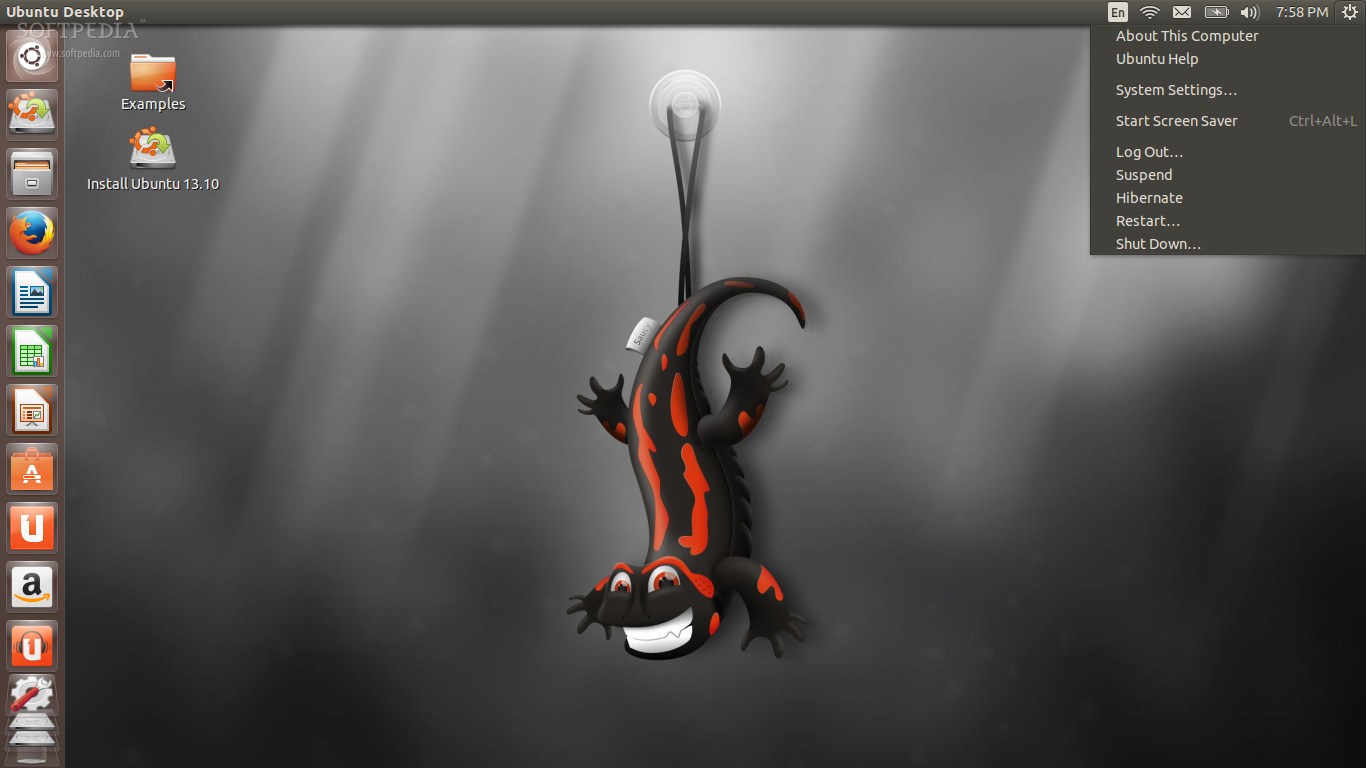
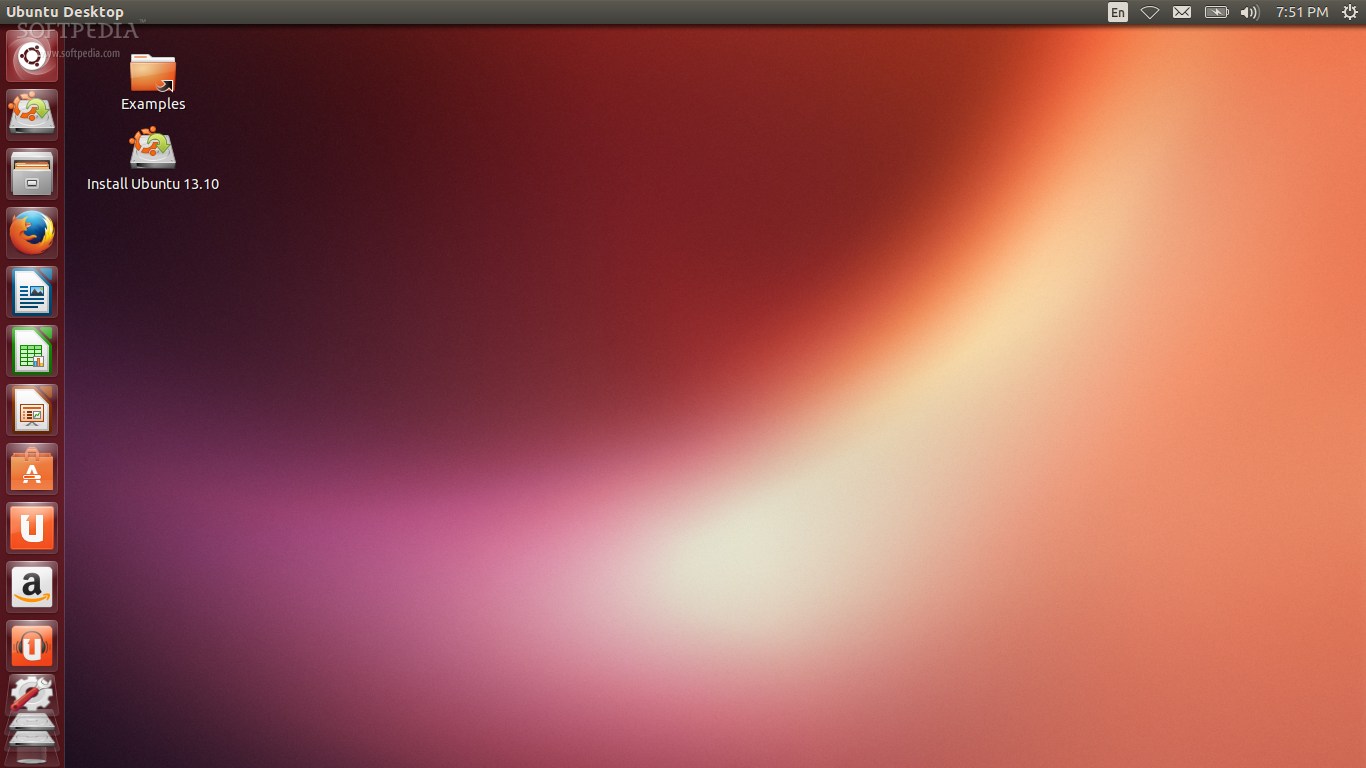
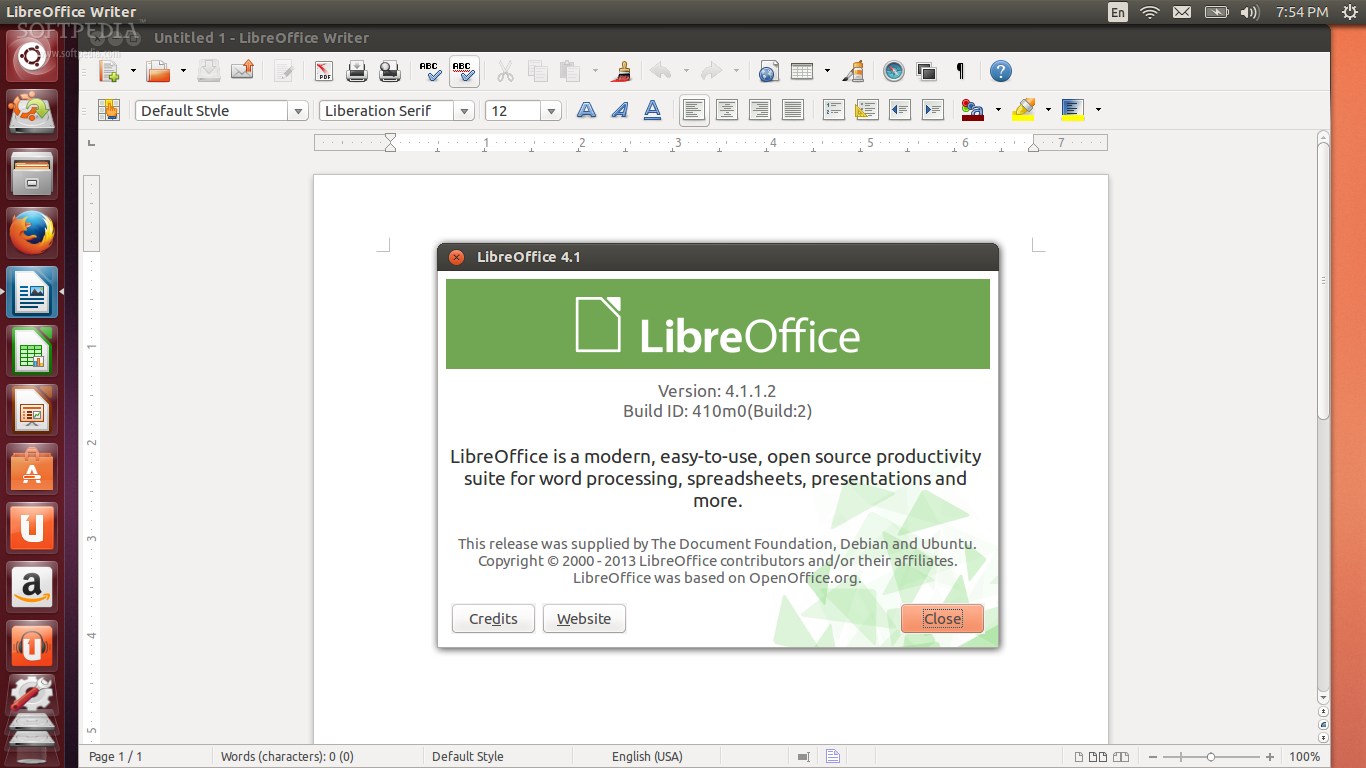
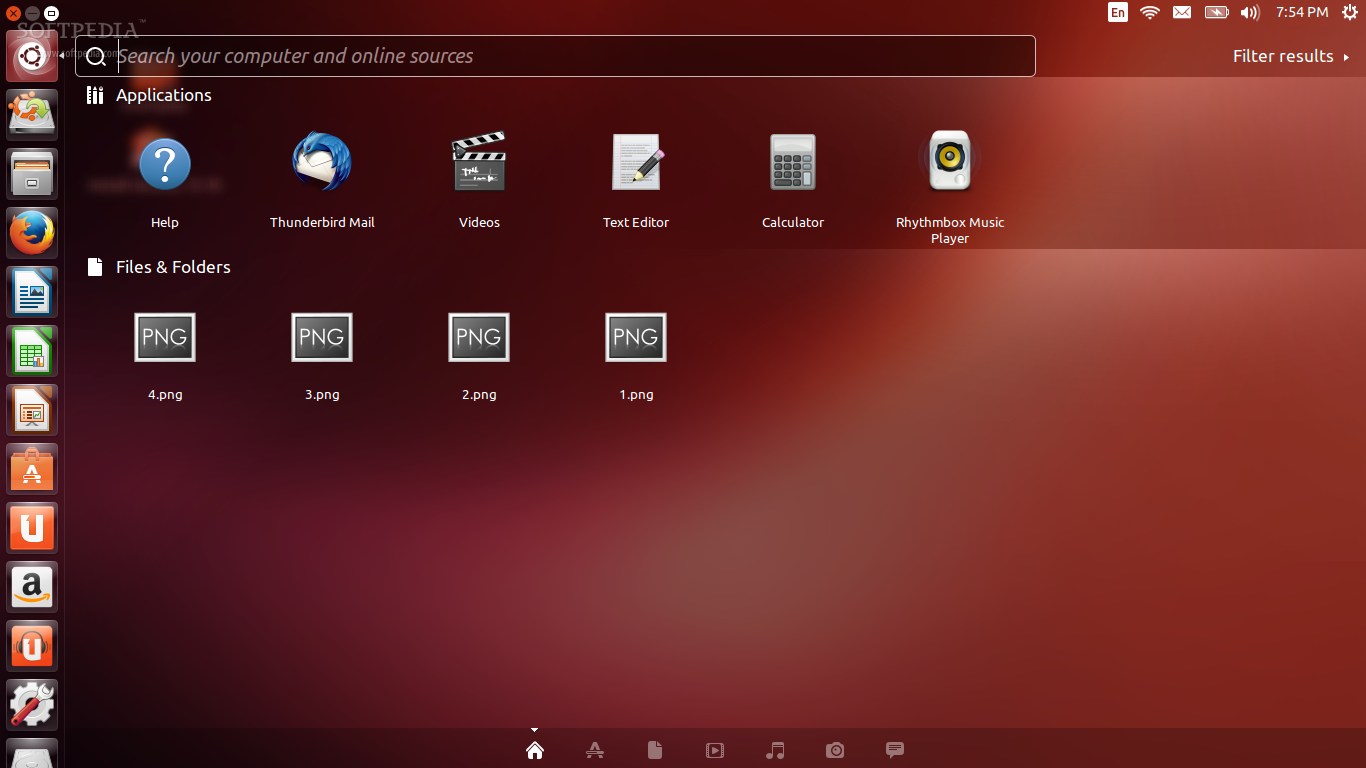
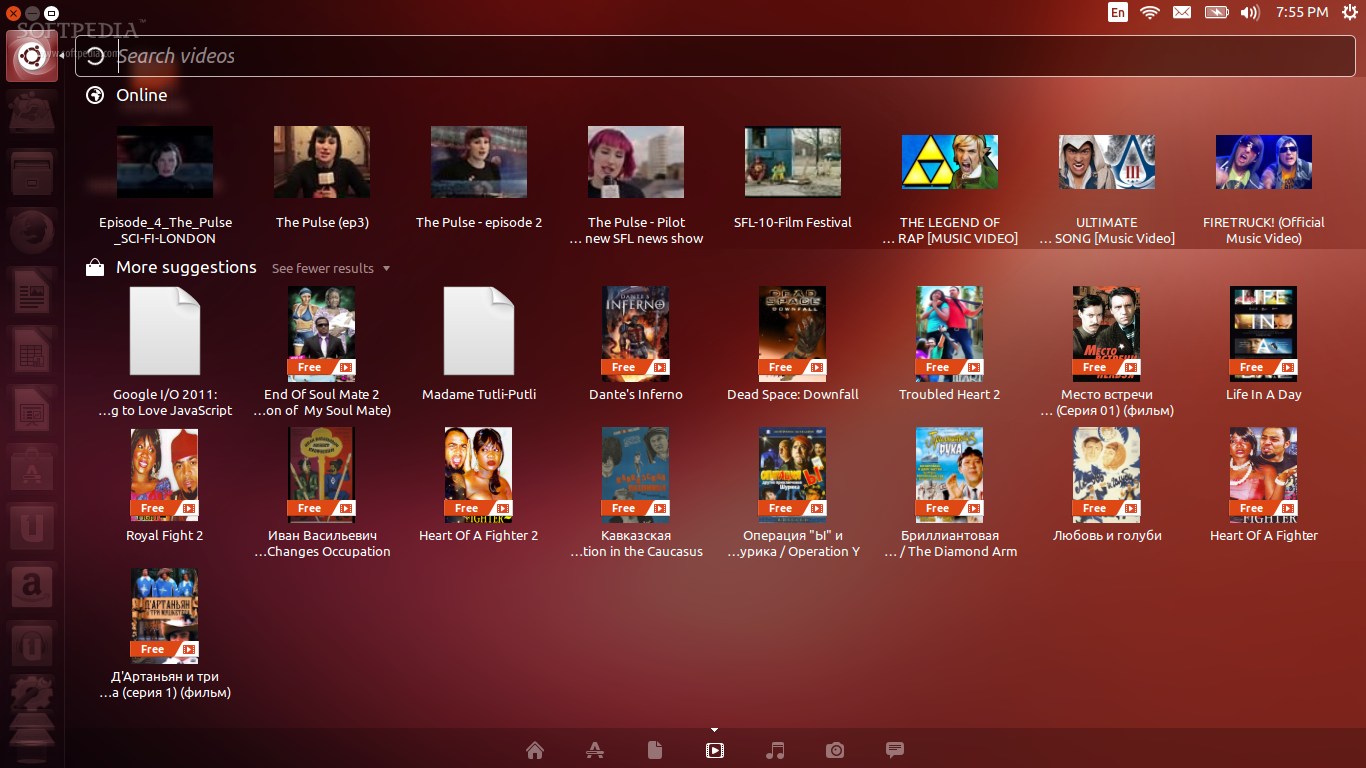
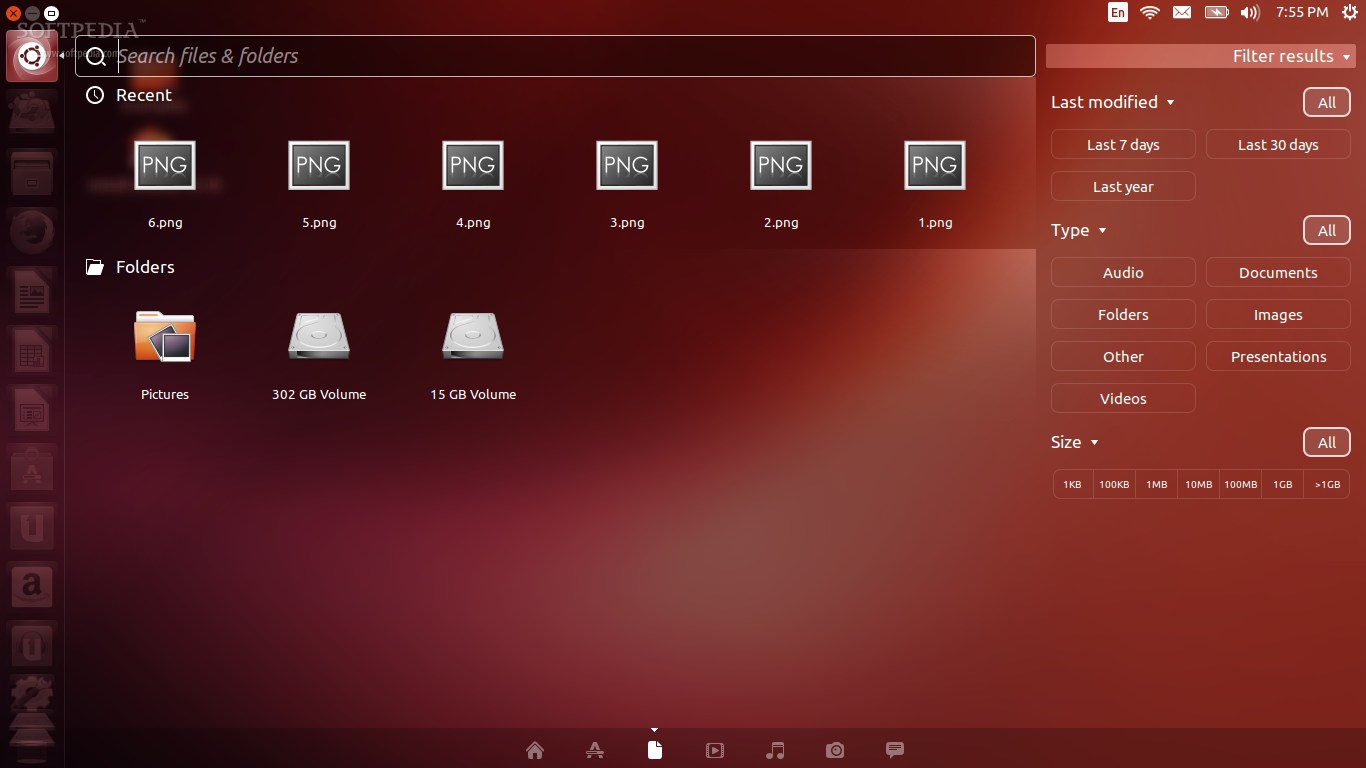
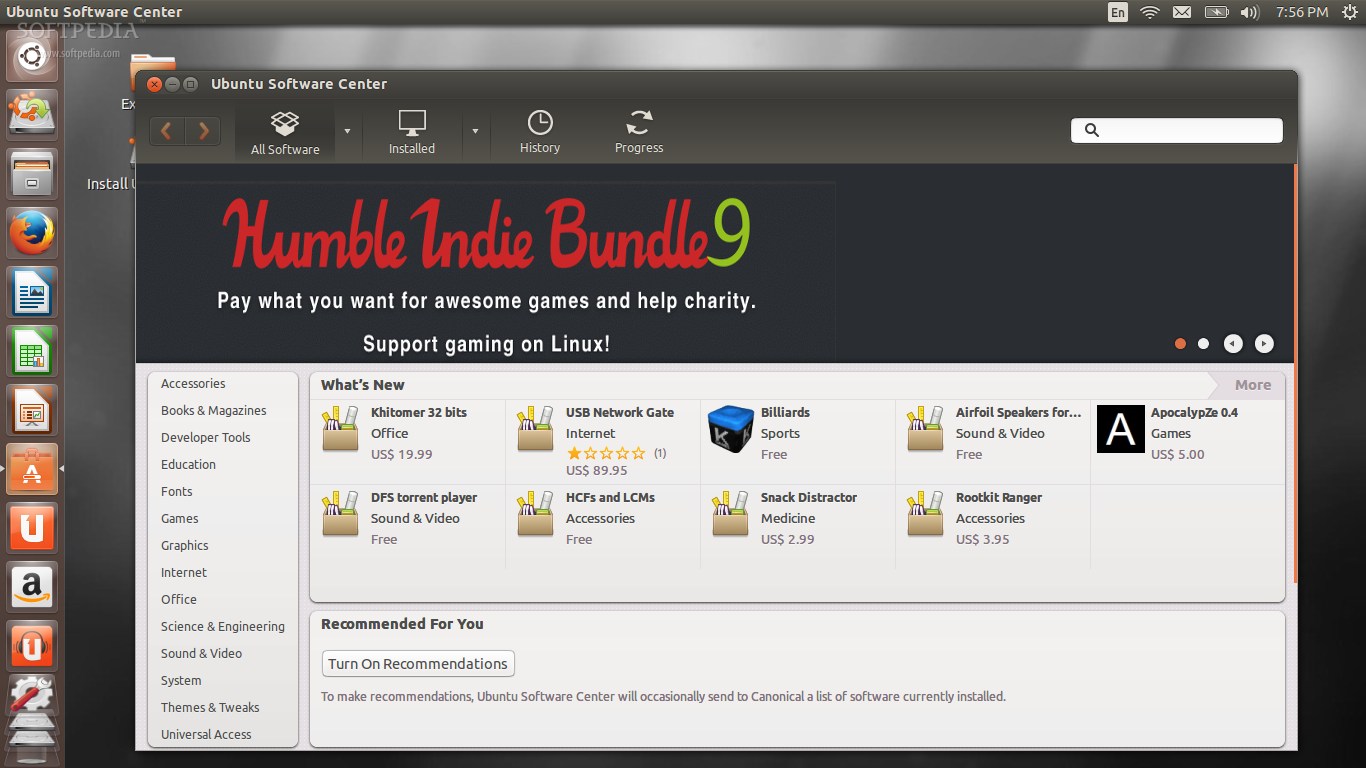
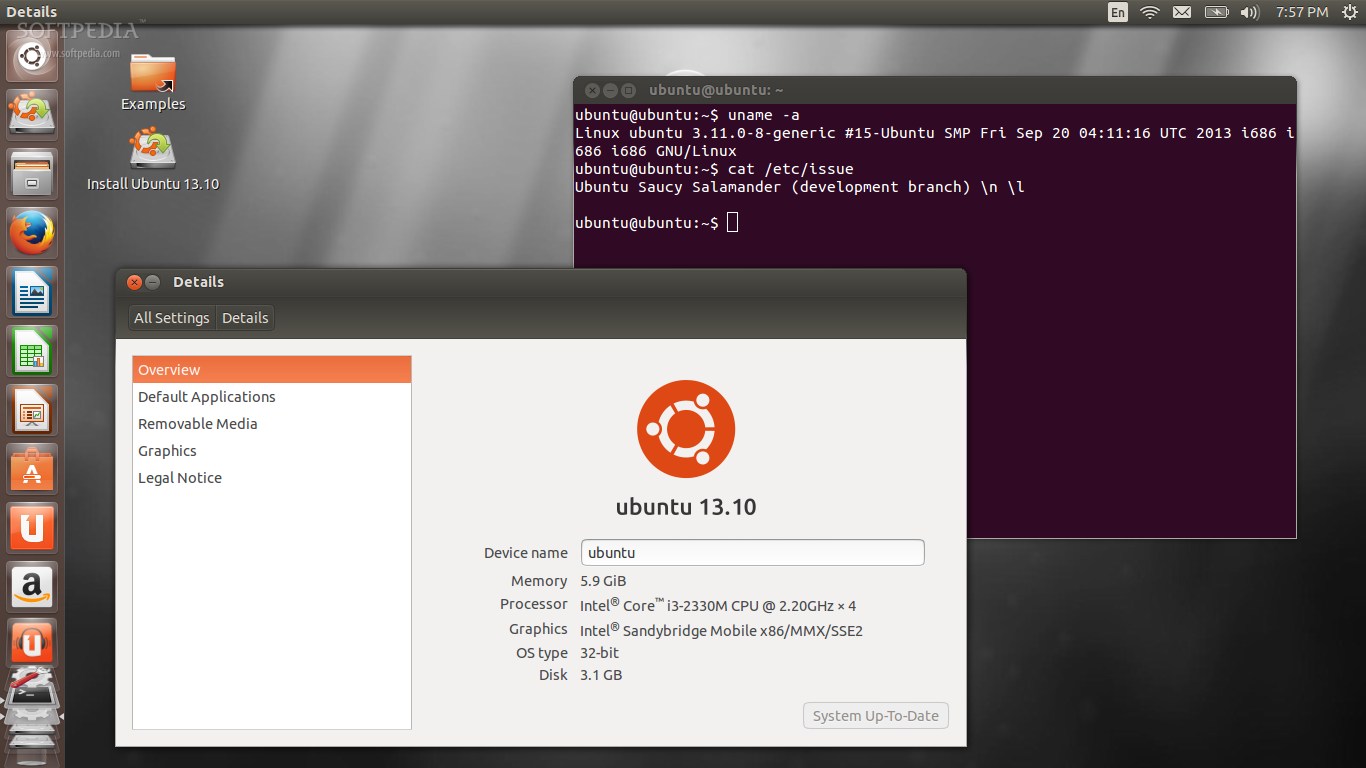
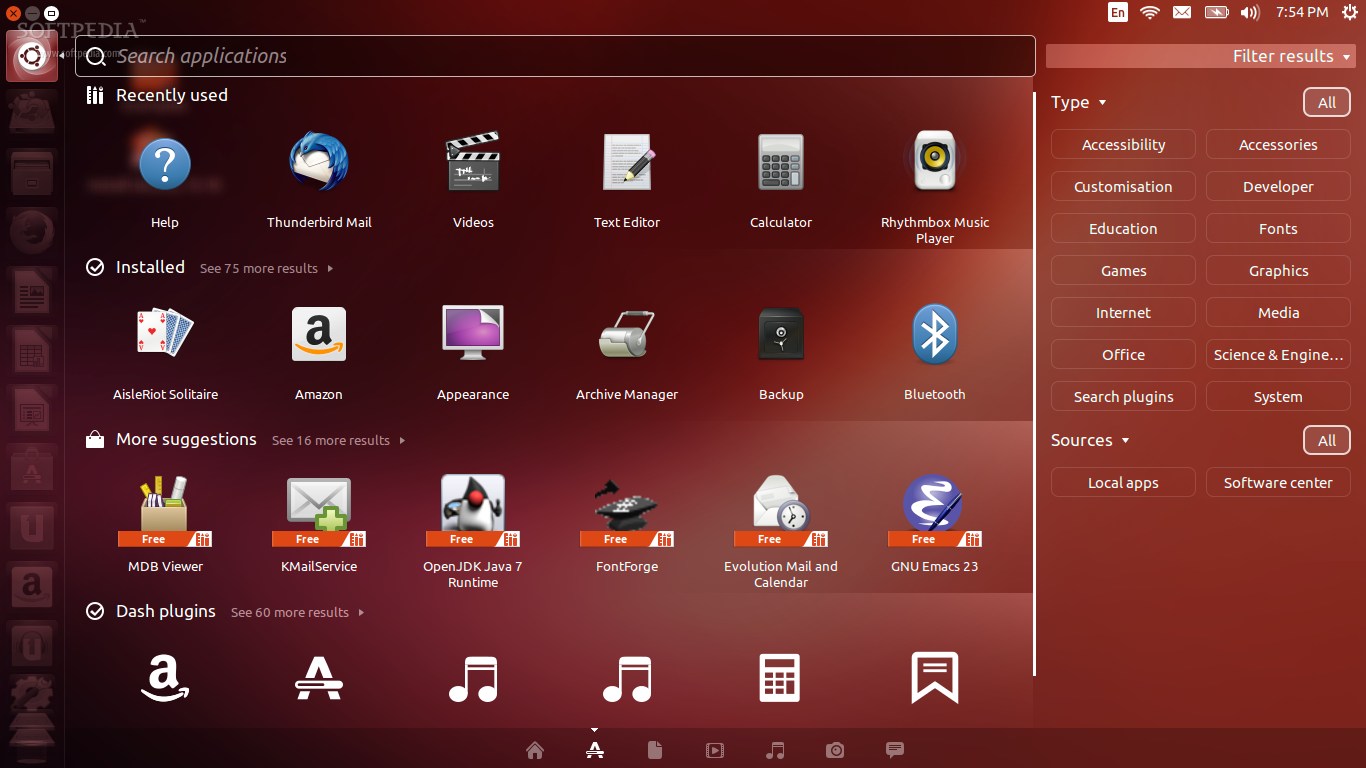
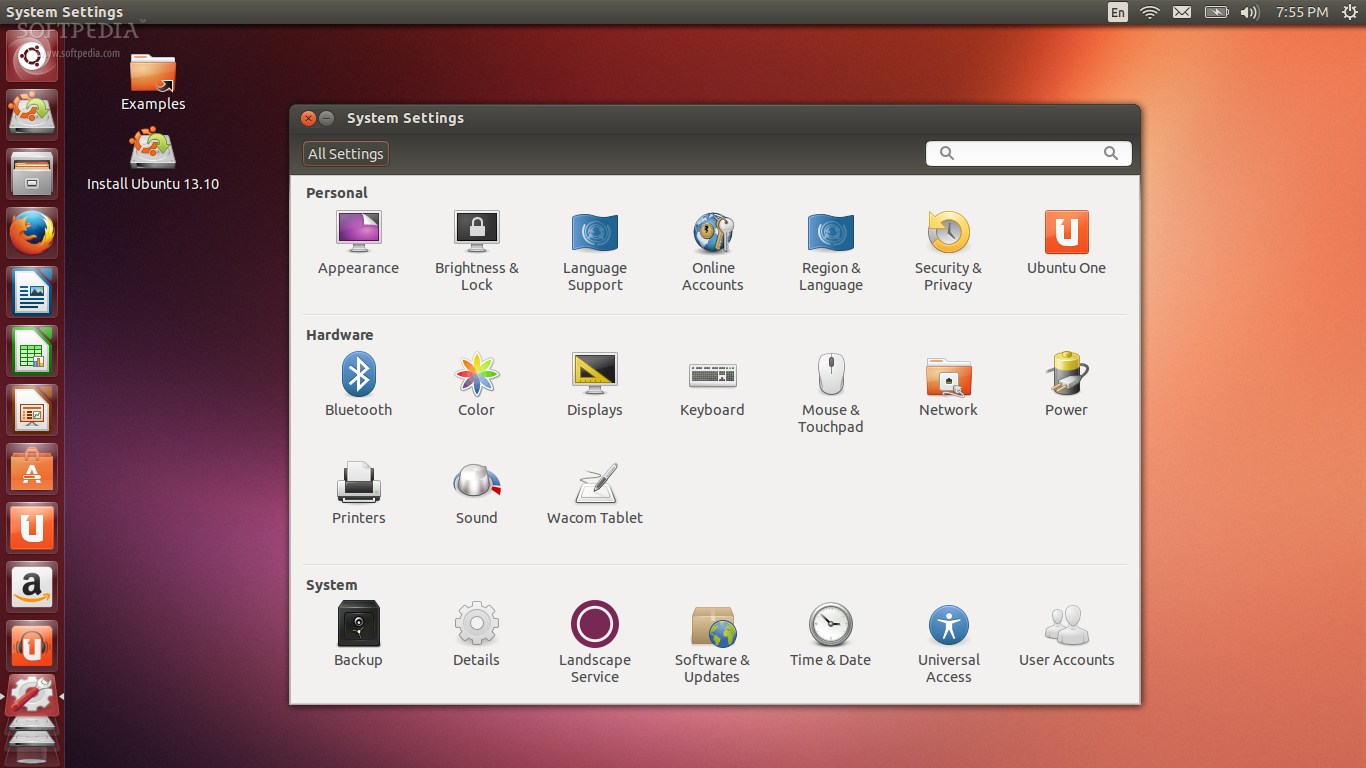
September 26 ရက္ ေန႔မွာ Ubuntu 13.10 Beta ထြက္ရွိလာခဲ႔ပါတယ္။ အခုေတာ႔ ကြ်န္ေတာ္႔ မိတ္ေဆြမ်ားကို Download လုပ္ခ်င္တဲ႔ သူေတြ အတြက္ ေဒါင္းလို႔ရေအာင္ရယ္၊ Screenshot ၾကည့္ခ်င္တဲ႔ သူေတါ အတြက္လည္း ၾကည့္လို႔ရေအာင္ Screenshot Tour ေလးေတြ လုပ္ျပီးတင္ေပး လိုက္ပါတယ္။

Dubbed Saucy Salamander လို႔ အမည္ရတဲ႔ Ubuntu 13.10 Beta ဟာ Ubuntu Linux kernel 3.11.0-8.15 ကို အသံုးျပဳထားျပီး Linux kernel 3.11.1 ကို အေျခခံတည္ေဆာက္ထားပါတယ္။ ၄င္း Ubuntu အသစ္ထြက္ Version 13.10 Beta မွာ Upstart 1.10, CUPS 1.6.2, cups-filters 1.0.34 နဲ႔ Python 3.3 တို႔ ထည့္သြင္းထားပါတယ္။

Ubuntu 13.10 Beta ကို Live DVD ISO images အေနနဲ႔ ျဖန္႔ေ၀ထားျပီး 32-bit ေရာ 64-bit ေရာ တြက္ ရရွိႏိုင္ပါတယ္။ သင္႔အေနနဲ႔ Beta ကို ေဒါင္းလုပ္ျပဳလုပ္ခ်င္တယ္ ဆိုရင္ ေအာက္ပါလင္႔မွာ Download ျပဳလုပ္ႏိုင္ပါတယ္။


From Softpedia US Server


Download hosted on external servers


Caution ! 
ယခု ထုတ္ေပးခဲ႔တဲ႔ Ubuntu 13.10 ဟာ Beta Version ပဲျဖစ္ေသးတဲ႔ အတြက္သင္႔အေနနဲ႔ Production Machine ပၚမွာ install မလုပ္သင္႔ေသးပါဘူး ။ အရင္ Virtual Machine မွာပဲ ထည့္သြင္း စမ္းသပ္တာကိုပဲ ျပဳလုပ္ ေစခ်င္ပါတယ္။

Screenshot Tour

Ubuntu 13.10 Beta  
Ubuntu 13.10 Beta 
Ubuntu 13.10 Beta  
Ubuntu 13.10 Beta 
Ubuntu 13.10 Beta 
Ubuntu 13.10 Beta 
Ubuntu 13.10 Beta  
Ubuntu 13.10 Beta 
Ubuntu 13.10 Beta  
Photo Credit : Softpedia 
post Credit by techmilo

Windows 7 & Ubuntu Dual Boot Configuration ( ျမန္မာလို စာအုပ္ *New For 2013* )


Windows 7 တင္ထားတဲ့ကြန္ပ်ဴတာေပၚမွာ ေနာက္ထပ္ Ubuntu Linux OS ကို Dual Boot အေနနဲ႕ထပ္
တင္နည္းစာအုပ္ အသစ္ျဖစ္ပါတယ္.. Dual Windows တင္နည္းခဏခဏေမးေနၾကတဲ့ညီအစ္ကိုေတြ
အတြက္ MM IT Helper ကေနအသစ္ထပ္မံတင္ဆက္ေပးလိုက္ပါၿပီ :)

Download => Tusfiles / Solidfiles / Zippyshare
 
credit by  mmithelper


Kali linux Install ျပဳလုပ္ပံုအဆင့္ဆင့္ ျမန္မာလိုစာအုပ္ ( New )


bt 6 လုိ႕ ေရပန္းစားေနတဲ႕ kali ၿမန္မာလုိ install ၿပဳလုပ္ပုံ သူရဲ႕ အားသာခ်က္ ေတြ 

ၿမန္မာလုိစာအုပ္ေလးပါ စိတ္၀င္စားတယ္ဆုိရင္ ေဒါင္းလုိက္ပါ

What is Kali Linux ?

Kali linux ဆိုတာ Penetration Testing ႏွင့္ Secturity 

အတြက္ထုတ္လုပ္ထားတဲ့ Linux Disto တစ္ခုျဖစ္ပါတယ္

Kali Linux Features

Kali Linux ဆိုတာ Backtrack Linux ရဲ႕ေနာက္ဆံုးထြက္ ဗားရွင္းျဖစ္ျပီး Backtrack 

ထက္ပိုမိုေကာင္းမြန္ေအာင္ျပဳလုပ္ထားပါတယ္ ဒါေၾကာင့္လည္း Backtrack6 ဟုတင္စားေခၚေနၾကတာပါ

Linux အခြဲေပါင္းမ်ားစြာထဲမွ Debian ကိုအေျခခံထားတဲ့ Kali ဟာ အျခား Linux OS 

မ်ားနဲ႔မတူညီတာကေတာ့ Tools ေပါင္းမ်ားစြာ Application ေပါင္းမ်ားစြာပါ၀င္တာပါပဲ
ေဒါင္းခ်င္သပဆိုရင္ေတာ့..
Download => Box / ShareBeast / Zippyshare 


 Post Credit =>   http://www.mmithelper.com
ဒါကေတာ႕ အဖြဲ႕ေလးတစ္ခုပါ fb Backtrack & Kali Linux Tutorial

အိုင္တီေခတ္

Jul 20, 2013

Configure a professional firewall using pfSense

Configure a professional firewall using pfSense

The guide will take you through the setup of the pfSense firewall with one WAN interface, one LAN interface and one Opt1-WiFi Interface.
This guide was written for Linksys, Netgear, and D-link users with no firewall or router experience. No experience is needed with FreeBSD or GNU/Linux to install and run pfSense. When you are finished, management of pfSense will be from a web interface just like any of the SOHO firewall/router appliances.
pfSense is a web-based firewall project that is similar, in terms of functionality, to the software in firewall appliances sold by Linksys, Netgear and D-Link. pfSense covers all the basic requirements offered by those appliances but offers so much more--in fact, it is really in a class by itself since it would be very difficult to find a commercial alternative that would provide what pfSense has to offer (or, anything cheaper than $2,000–$5,000).
As mentioned above, in this article I will explain how to setup the pfSense firewall with one WAN interface, one LAN interface and one Opt1-WiFi Interface. This set-up allows you to offer wireless Internet to the surrounding community. The WiFi subnet will not be able to access the LAN: it will be able to connect to the Internet only. You can choose to eliminate the Opt1-WiFi setup: this will leave you with a firewall more similar to the "conventional" appliances.
One of the very unique uses for your new firewall could be to offer wireless Internet to your neighbors at a reduced cost
One of the very unique uses for your new firewall could be to offer wireless Internet to your neighbors at a reduced cost. This connection can be via an encrypted access point, where the network key is only given to approved users, or an open access point where you control access to the Internet with the captive portal function built in to pfSense. A portal landing page will be presented whenever a user tries to connect to the Internet at the beginning of the session. Each user will need to have their user name and password entered into the firewall in advance of the first connection.
There are many advanced features that pfSense can offer with one-click installation which are listed at the end of this article. See the pfSense's web site. There is an active user forum and an pfSense Wiki.

Two good reasons to use pfSense

  1. pfSense is a very powerful and stable project with advanced features. Users of pfSense have reported that it performs well even with hundreds of computers operating behind the firewall. pfSense has all the features of the SOHO units and much more. You can have multiple network subnets separate from each other using firewall rules. For example, you could have separate subnets for each business function; or separate Accounting, Marketing, Sales, and R&D from each other, while giving each one access to the Internet; or set up a HotSpot for your business, allowing users to access the Internet but not the company LAN (which usually contains a POS (Point Of Sale) system and/or proprietary information and non public computer systems).
  2. If you are an experienced FreeBSD, GNU/Linux or Unix user you may wish to add applications from the FreeBSD repository. While running additional applications on a firewall can increase your exposure to potential risk of being hacked, it can still be extremely useful to add a few applications to pfSense. Once you get pfSense installed you can find a list of authorized ports under the System Packages tab. These can be installed with one click. The FreeBSD.org packages are added by the user via the shell the way it has been done for years. These FreeBSD.org packages are not officially supported by pfSense.

Install Guide

Download, ISO preparation, and interface selection.

Here is the link to the pfSense download area This will take you to a mirror near you. This CD we will install from is a Live CD. A Live CD will allow you to test your hardware and pfSense without actually installing onto the hard drive. You will need to change your BIOS to boot from the CD and then boot from the CD image that you create from the ISO image. This CD is also an installer CD--more on this later.
Users of pfSense have reported that it performs well even with hundreds of computers operating behind the firewall
The ISO image for this guide will be pfSense-Full-Update-1.2-RELEASE.tgz. You will first need to decompress this file using gzip to get to the ISO. Then, create the bootable CD. A good program to use is cdrecord via the GNU/Linux command line.
Use this command:
sudo cdrecord -v speed=20 dev=/dev/sr0 pfSense-1.2-RC3-LiveCD-Installer.iso
If you use Linux, your device (dev) may vary. There is also a good utility for Windows for creating ISOs called Deep Burner, which is freeware, but it's not released under a free license.
Now that you have set your BIOS to boot from CD and you have created your bootable CD, you can boot into pfSense on your PC. You will need to have at least two network cards installed—although I recommend three. The third is necessary for the WiFi subnet, giving you:
  • one for the WAN (your ISP);
  • one for your private LAN;
  • one for your WiFi internet-access-only subnet.
Check the FreeBSD hardware compatibility list first to make sure your hardware is supported.
You can now boot into pfSense. As the bootloader comes up the Free BSD screen 7 options are listed. You can wait for the default option (1) to boot up. Take a sheet of paper and write down the initials for the "valid interfaces": you will need them in a moment. Mine are fxp0, fxp1, and fxp2. The next choice you will be asked to make is "Do you want to set up VLAN's now [y|n]?" Select "no" or "n".
Then you are asked to "Enter your LAN interface name", enter one from the sheet of notes you just created. I enter 'fxp1'.
Next you are asked to "Enter your WAN interface name". I enter fxp2. The next option is "Enter the Optional 1 interface name". Here I enter my last 'fxp0'.
You should then see:
The interfaces will be assigned as follows:
LAN -> fxp1
WAN -> fxp2
OPT1 -> fxp0

Do you want to proceed [y|n]?
(Make sure you enter "y" here).
pfSense is now running in RAM and almost fully functional. If you wish you may plug your LAN interface into a hub or switch and connect via the web interface. pfSense is by default assigned an IP of 192.168.1.1. Open your browser and check it out, or proceed to the hard drive install. To run from RAM you can skip to the "Web interface configuration" section of this guide.
pfSense is now running in RAM and almost fully functional
If you choose to login, the user name is "admin" and the password is "pfsense".

Hard drive install

Here is how to complete a hard drive installation.
Transition to the console in order to begin the "hard drive installation". This section is "pfsense console setup": Select "99".
This is a curses based install. It works best if you use an entire hard disk. If there is any data on the disk, make sure that you have copied it to another location. You can, as a rule of thumb, accept the default settings that are presented during the curses-based installation.
Pictures of the pfSense installation are available in pfSense's forums.
Here is a list of operations, shown graphically by the tutorial:
  • Note: If you would like to see the instructions as a Wink tutorial, you can see pfSense's Wink tutorial. However, the instructions here follow.
  • Remember to remove the CD from the drive when you reboot.
  • After rebooting, you should be presented with the "pfsense console setup" for a second time. At this moment you can unplug your monitor cable and manage this firewall via a browser, or you could select option 8 and explore it using a shell.
  • Make sure your computer's interface is in the 192.168.1.0 subnet, because pfSense's LAN interface is by default 192.168.1.1. The default username and password for the web GUI are "admin" "pfsense".
  • Select System→Setup Wizard now.
  • This wizard will guide you through the initial installation of pfSense. Click "next"
  • General Information: enter primary and secondary DNS (name servers) if you wish. Click "next"
  • Select TimeZone and then Click "next"
  • On the Wide Area Network Information page scroll down and click "next"
  • On the LAN interface page you may select a Subnet IP address of your choice or stay with the default of 192.168.1.1. If you stay with the default, you will need to configure your computers so that they are on the same subnet, or have DHCP enabled on your network PCs.
  • The password page: you should select a password that consists of at least 8 letters and numbers, lowercase and uppercase. Save this new password in a secure place. Now that you have selected a new password you will be required to login again.
  • Go to "Interfaces" tab on the top row and select "Opt 1: Enable the opt 1 interface". Enter the IP of the Opt 1 interface under the IP Configuration section, "192.168.2.1". Scroll to the bottom and select "save"
  • On the top bar, select "Firewall→Rules"; select the "Opt 1" tab; and click on the plus to add a rule. Change protocol to "any". Under "Destination", check the "not" box. In "Type", select "LAN subnet". In "Description", enter allow all to net - > ! LAN subnet. Save the changes, and then in the next window, select "Apply Changes".
  • Go to the Top row and select Status→Interfaces
  • Move the cable from your current firewall to the WAN port for pfSense and connect the LAN cable to the LAN port on you new pfSense firewall. At this point you should power cycle your Broadband provider's equipment (turn it off for 30 seconds, then turn it back on). Sometimes when your MAC address changes on your firewall, your broadband provider will need to be involved to reset your configuration.
  • Under the WAN interface section, you may see your external IP address. If this is the case you are, most likely, good to go.
  • Go to the "Services" tab, then "DHCP server". Select the "Opt 1" tab and enable the DHCP server for that interface. In the "Range" section, enter the IP address range for your DHCP server.
  • Scroll to the bottom to select "save", and you are ready to go.

Setting up your Wi-Fi for the Opt1-Wi-Fi interface

Run a cat-5 cable from the Opt1-Wifi interface that you set up earlier to the access point you plan to have on its own subnet. This subnet is separated from your LAN via firewall rules. This AP will connect directly to the internet and have no access to your LAN. Many of the SOHO firewall/routers have a default IP address of 192.168.0.1 or 192.168.1.1. Change this to a different IP address so it will work on this install, and not have the same IP address as your new pfSense box. I selected 192.168.2.5.
You can use this same process on your LAN for a second access point with an IP address on the same LAN subnet that is encrypted
Then, disable the DHCP server on this appliance so your pfSense box can now hand out the addresses. This way when you are looking under Diagnostic→ARP tables you can easily see who is on your connection. Enable the DHCP server under the Services→DHCP server, tab click on the Opt 1 interface, and on the top, check the box "enable DHCP Server". You will need to set the Range of the DHCP server which will regulate how many IP addresses you will give out.
The key to this functioning properly is to make sure that when the firewall rule is set up for the Opt1 Wifi interface is that the protocol section be set to "any". By default when the rule is set up it is TCP. If this is not set properly access will be limited and for our purposes would not work.
You can use this same process on your LAN for a second access point with an IP address on the same LAN subnet that is encrypted. This wireless network connection is for your use only, not your neighbors. Disable the DHCP server on the second Access Point and let pfSense handle that function. You can regulate access by using the built in captive portal capability found under Services→Captive Portal. An equally effective way for an encrypted network is to only give your network key passphrase to select people.

Get help

If you encounter difficulty you can post questions related to the pfSense forums.

Advanced Features for pfSense

This section outlines some of the advanced features available in pfSense. These are features that in the past were generally available on proprietary and expensive firewalls.
  • Traffic Shaping - This gives you the ability to prioritize traffic. For example if you use VOIP you will want to give that top priority. Also you may want to move torrent traffic down the priority list so that it does not slow down web surfing traffic
  • Clustering - Linking two or more computers into a seperate network to take advantage of parallel processing of those compters
  • Load Balancing - If you are running multiple web servers you can spread the traffic evenly to each server. This will help to prevent any one server from becoming overburdened
  • Failover - You can set up two firewalls with pfSense if one fails the other will automatically kick in. If you have multiple Internet connections and one fails the other will take over
  • Captive Portal - Control Access to the internet. Like coffee shops use when they offer free WiFi
  • The below services will install with one click in pfSense. Installing these features is a snap. There are tutorials available for some of the below packages on the pfSense wiki. If no tutorial is available help is available on the pfSense forums
  • Snort - Lightweight network intrusion detection system
  • Squid - High performance web proxy cache
  • FreeRadius - Implementation of the RADIUS protocol
  • IMSpector - an Instant Messenger proxy with logging capabilities
  • nmap - A utility for network exploration or security auditing
  • ntop - Shows network usage in a way similar to top
  • Darkstat - A packet sniffer and a network statistics gatherer and much much more.
pfSense will also allow you to add packages from the standard FreeBSD repository, although any unofficial packages are not supported by pfSense.
Ref & Credit  =>  configure_professional_firewall_using_pfsense/ http://www.freesoftwaremagazine.com

Jul 16, 2013

PCop - Linux firewall distribution

  1


firewall ေတြ ထဲ မွာ တစ္ခု အပါ၀င္ၿဖစ္တဲ ့ linux base firewall ကို တင္ေပးလိုက္ပါတယ္
IPCop Firewall - Linux firewall distribution geared towards home and SOHO users.
IPCop provides secure and stable Linux Firewall Distribution. It is a complete Linux Distribution whose sole purpose is to protect the networks it is installed on. It is geared towards home and SOHO users. The IPCop web-interface is very user-friendly and makes usage easy.

Features -
Provide a stable Linux Firewall Distribution.
Provide a secure Linux Firewall Distribution.
Provide an open sourced Linux Firewall Distribution.
Provide a highly configurable Linux Firewall Distribution.
Provide an easily maintained Linux Firewall Distribution.
Provide an easily configured Linux Firewall Distribution.
Provide reliable Support to the IPCop Linux user base.
Provide an enjoyable environment for the Public to discuss and request assistance.
Provide stable, secure, and easy to implement upgrades/patches for IPCop Linux.
Develop an appreciation for both the Linux and Opensource movements in our user base.
Develop a long lasting relationship with our user base.
Strive to adapt IPCop to meet the needs of the Internet of Tomorrow.
Further develop the Linux Knowledge base of all Project Members and Users.

The latest stable IPCop version is 2.0.4, released on 2012-02-16. There are no installation files for 2.0.4, you need to install 2.0.3 and then upgrade to 2.0.4.
Latest update (i486 2.0.4)
Latest installation CD (i486 2.0.3)
All installation files for 2.0.3

Visit website - http://www.ipcop.org
http://sourceforge.net/projects/ipcop/
http://en.wikipedia.org/wiki/IPCop

Documentation
v2.0 Installation Manual
v2.0 Administration Manual
v1.x IPCop Quick Start Guide
v1.x Installation Manual
v1.x Administration Manual

For more information on Installation & implementation -
http://www.linuxforu.com/2011/12/ipcop-firewall-installation-basics/
http://anujkamra.wordpress.com/2009/06/24/ipcop-installation/
Guard netowrk with ipcop firewall configuration series
http://www.linuxforu.com/2011/12/ipcop-firewall-installation-basics/Guard Your Network with IPCop, Part 3: Block Outgoing Traffic
Guard Your Network with IPCop, Part 5: Your First Site-to-Site VPN
Guard Your Network with IPCop, Part 2: Add-ons
Guard Your Network with IPCop, Part 4: Configuring OpenVPN with Zerina Add-on


Jul 13, 2013

IPCop - Firewall _ Content Filter _ Block Porn _ Web Proxy C-1


ဒါ ကေတာ ့ configuration for IPCop - Firewall _ Content Filter _ Block Porn _ Web Proxy C-1

Jul 12, 2013

Setting Up Wireless Driver In FEDORA 17/18

This Works for both fedora 17 and 18. It may also work for earlier versions.

When I installed my first Linux OS, i.e. Kubuntu 11.10, I found that my wifi didn’t work. I could not find a solution. Now after installing Fedora 17, I figured how it is done. I got help from a fedora forum and most of the information here is from that forum.

First We need to figure out the chipset of the wireless device

Type the following code in the terminal
1
lspci -k | grep -A 3 -i "network"
check your wireless chipset number and the kernel driver in use with the following
1
2
3
4
5
6
7
8
9
10
11
12
13
14
15
16
17
18
19
20
21
22
23
24
25
26
27
28
29
30
31
32
33
34
35
36
37
38
39
40
41
42
43
44
45
46
                                       lspci
                                         |
                                Any of these listed?
                                        4301
                                        4303
                                        4306
                                        4309
                                        4311
                                        4312
                                        4318
                                       /    \
                                      /      \
                                     /        \
                                    /          \
                                  Yes           No
                                  /              \
                                 /                \
                                /                  \
                               /                  4310?
                              /                   /   \
                             /                   /     \
                            /                  Yes      No
                          b43                  /         \
                        loaded?               /          43XG
                        /    \           ndiswrapper   4313,43224
                       /      No                        4321,43225
                      /        \                         4322,43227
                     /          \                         4328,43228
                   Yes       b43legacy                      /   \
                   /          loaded?                      /     \
                  /           /     \                    Yes      No
                 /          Yes      No                  /         \
                /           /         \                 /           \
             4306?         /           \          broadcom-wl      4320?
            4311?      Install        4311?                     (from lsusb
           4318?      version 3        4312?                   or other means)
           /   \      firmware         /   \                        /    \
          /     \                     /     \                      /      \
        Yes      No                 Yes      No                  Yes       No
        /         \                 /         \                  /          \
       /           \               /           \                /            \
b43-openfwwf     Install     broadcom-wl   ndiswrapper    b43-openfwwf   ndis-
    or          version 4                                       or      wrapper
  Install       firmware                                    rndis_wlan
 version 4
 firmware

How to install b43, b43legacy, version 3 or version 4 drivers

  1. Install b43-fwcutter. This is the software package that does the extraction of the firmware from the proprietary driver. I was able to solve my friend’s problem with this step only.
    1
    2
    su
    yum install b43-fwcutter
  2. I further googled to see for other versions of the b43 driver and found the following in a fedora forum.
  3. Do this step only if you need to install version 4 firmware for the b43 driver module. Copy and execute the following command lines one after the other in a Fedora terminal.
    1
    2
    3
    4
    5
    tar xjf broadcom-wl-4.150.10.5.tar.bz2
    cd broadcom-wl-4.150.10.5/driver
    su
    b43-fwcutter -w /lib/firmware wl_apsta_mimo.o
  4. Do this step only if you need to install version 3 firmware for the b43legacy module.
    1
    2
    3
    su
    b43-fwcutter -w /lib/firmware wl_apsta-3.130.20.0.o
  5. Now reboot your system

How to install broadcom 802.11 Linux STA driver (broadcom-wl)
This is the driver problem I personally faced. I followed the following steps
  1. First we need to add the RPM Fusion repositories.
    For this we can directly go to the webiste RPM FUSION REPOSITORY
    Or you can also type the following commands in the terminal
  2. Once you have upgraded the rpmfusion free and non-free release in your system then update the system using the following command.
    1
    sudo yum update
  3. Once you have updated, you can install the broadcom-wl driver using the command
    1
    sudo yum install kmod-wl
  4. Now reboot the system.

How to install ndiswrapper driver

  1. First we need to add the RPM Fusion repositories.
    For this we can directly go to the webiste RPM FUSION REPOSITORY
    Or you can also type the following commands in the terminal
  2. Once you have upgraded the rpmfusion free and non-free release in your system then update the system using the following command.
    1
    sudo yum update
  3. Once you have updated, you can install the ndiswrapper driver using the command
    1
    sudo yum install kmod-ndiswrapper
  4. Now reboot the system.
I hope that these techiques will do the job.
refer link => မူရင္း ေနရာကိုသြားရန္

Followers